Halaxy
Has a field for a video linkHalaxy reminders have their own tab for video appointments, and templates can be set for one practitioner. Put each doctor's room link in their own template once and it goes out with every online booking.
- 1Book telehealth appointments with the Location set to Online Consultation. To make that the default, go to Personal > Locations, click the pencil on the doctor's schedule and set Default Appointment Location to Online consultation.
- 2Go to Settings > Reminders and click Add New Level > Individual for the doctor. Halaxy always uses the most specific level, so this template only goes to their patients.
- 3Click the pencil on the New Appointment reminder (the booking confirmation) and open the Video Consultations tab.
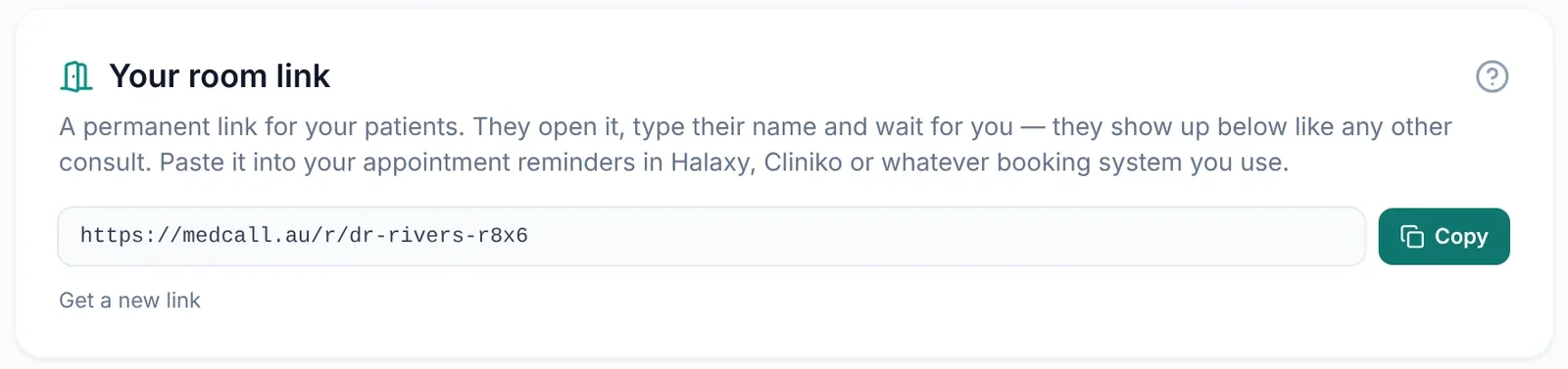
- 4Type the doctor's room link into the SMS and email text, for example “Join your video consult here: medcall.au/r/dr-jo-rivers-7k2q”. Save, then do the same for the Pre-Appointment reminder.
Prefer to add it per appointment? In the appointment's Appointment Information panel, click the video icon and paste the room link into Telehealth URL. Then use Dynamic Terms > Video Consult Link in the Video Consultations template, which inserts [Video Consult Link] from that field.
Halaxy's help pages (5)
Checked 14 October 2026.
Cliniko
One appointment type per doctorCliniko attaches confirmation and reminder templates to appointment types, and an appointment type can be limited to chosen practitioners. So each doctor gets a telehealth appointment type with their link in its templates.
- 1Go to Settings > Appointment types and create a telehealth type for the doctor, for example “Telehealth – Dr Rivers”. Under Choose which practitioners will offer this appointment type, pick only that doctor.
- 2Go to Settings > Appointment confirmations > New confirmation template, and Settings > Appointment reminders > New email template (and New SMS template). Type the doctor's room link into the message.
- 3Back in the appointment type, choose those templates from the drop-down below the colour selector. Cliniko only sends a template when it's attached to an appointment type.
Cliniko's TelehealthLink placeholder is for Cliniko's own video, not an outside link, so type the MedCall link in as text.
Cliniko's help pages (4)
Checked 14 October 2026.
Zandaformerly Power Diary
One template or rule per doctorZanda's pre-appointment automations can be filtered by practitioner, so each doctor gets an automation that sends a template with their link.
- 1Go to Tools > Communication > Templates, click + New Template and choose Email or SMS. Type the doctor's room link into Content.
- 2Go to User Menu > Account Settings > Communication > Automations, click + ADD AUTOMATION and choose Pre-appointment.
- 3Add a Practitioner condition for the doctor (and a Service or Telehealth Status condition if only some of their appointments are telehealth), then choose the template. Repeat for each doctor.
Zanda strips formatting from SMS, so paste the link as plain text.
Zanda's help pages (3)
Checked 14 October 2026.
Nookal
One template or rule per doctorNookal reminders and confirmations can each be limited to chosen practitioners, so set one of each per doctor.
- 1Go to Manage > Reminders and click Create Reminder. Choose the telehealth services and locations, and under Practitioners select only the doctor.
- 2Set the timing, choose SMS or Email, type the message with the doctor's room link, and save.
- 3Go to Manage > Appointment Confirmation, click Create Appointment Confirmation, and do the same with the same filters.
Nookal's help pages (2)
Checked 14 October 2026.
Best PracticeBp Premier
One template or rule per doctorBp Premier sends automated reminders on schedules you set up per doctor, appointment type or location. Each doctor gets a schedule with a template that has their link.
- 1Go to Setup > Configuration, click the Templates icon, then Add. Name it, set Type to Appointment, and type the message with the doctor's room link. Templates can be up to 500 characters.
- 2On the server, go to Setup > Configuration > Bp Service and tick Use BP Service for sending automated appointment reminders.
- 3Click Configure Appointment Reminders > Add. Choose the doctor (and your telehealth appointment type) on the left and the template on the right. One schedule per doctor.
If your practice sends reminders through HotDoc instead, see HotDoc below.
Best Practice's help pages (3)
Checked 14 October 2026.
HotDoc
Practice-wide templates onlyHotDoc's standard reminder templates are practice-wide. Templates for one doctor exist, but HotDoc has to set them up for you.
- 1Solo doctor: go to Reminders > Templates > Standard Reminders, click Edit Email or Edit SMS, and add your room link. The SMS has to include
{{time}} and stay under 160 characters. - 2Several doctors: ask HotDoc support for Custom Reminder Templates limited to each doctor and your telehealth appointment type, with that doctor's room link. Practices can't create these themselves.
HotDoc rewords reminders for appointment types with “Telehealth” or “Video” in their name, so check a test reminder reads the way you expect.
HotDoc's help pages (4)
Checked 14 October 2026.
MedicalDirectorPracsoft and Helix
One template or rule per doctorBoth Pracsoft and Helix let you set reminder text per practitioner.
- 1Pracsoft: in the Appointment Book, go to SMS > Message Templates > Configure Templates. Choose the doctor's Appointment Book, pick them under Appointment Book Practitioner, and type their room link into the message.
- 2Helix: go to your user menu, then Settings > Centre > Patient Messaging, open the Appointment reminders tab and click + Appointment reminder. Pick the doctor under Practitioners (and your telehealth type under Appointment types) and type the link into Message.
MedicalDirector's help pages (2)
Checked 14 October 2026.
Splose
One appointment type per doctorSplose attaches templates to services, and services are assigned to practitioners. So each doctor gets a telehealth service with their link in its templates.
- 1Go to Settings → Services and create a telehealth service for the doctor, assigned only to them.
- 2Go to Settings → Appointment Templates, click + New template, and make a Confirmation and a Reminder with the doctor's room link typed in.
- 3Open Settings → Services → [the service] → Appointment notifications and attach the templates.
Splose's help pages (2)
Checked 14 October 2026.
Coreplus
Practice-wide templates onlyCoreplus has one reminder template for the whole practice, so a single room link would go to every doctor's patients.
- 1Solo doctor: go to Setup > Settings > SMS Reminder Template (or Email Appointment Reminder) and add your room link.
- 2Several doctors: send each patient a one-off invite from MedCall instead (see below).
The &telehealthurl& placeholder is for Coreplus's own video add-on and won't carry a MedCall link.
Coreplus's help pages (2)
Checked 14 October 2026.